Troubleshot
1. Can Not Login
Recently, some users reported being unable to log in to some websites. This issue also occurs on websites using CloudFlare Challenge.
To make matters worse, you can't sign in to these websites even on browsers that aren't opened with WhaleDown. This is most likely due to the user's computer being labeled a bot by CloudFlare.
This bug was fixed in version 2026.02.2.
2. MediaKeySession Error
Sometimes the web player shows an MediaKeySession error. Sometimes the player shows lots of snowflakes.
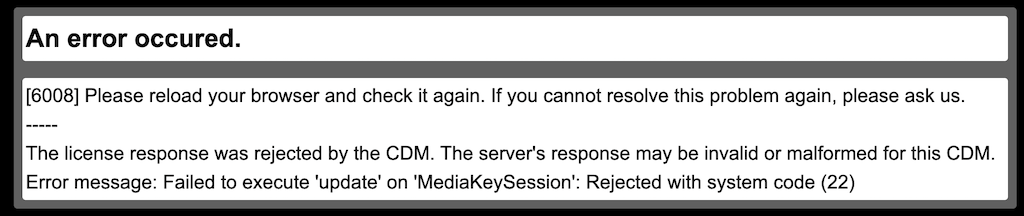
That means that the video is using Widevine DRM technology to protect it.
This error is due to the hacks WhaleDown uses to obtain the keys to decrypt the video. At this point, you can see the
icon in theDetails View of the video in Detector.
Please ignore this error. Sometimes the video starts playing after refreshing the page.
At this point, WhaleDown should have detected the video and corresponding keys. Please open the Detetor to view the new video item.
3. Can Not Play Video
Some users reported that when visiting the following website, the video on the page was not playable. Below is a list of websites reported by users,
We're very sorry this bug can't be fixed for the time being.
4. Open Multiple Tabs On Startup
Sometimes when users launch a browser using WhaleDown, the browser opens multiple tabs. This issue mainly occurs when using Brave Browser or Microsoft Edge.
Generally speaking, this is not a bug. You can change the behavior of the browser by modifying the startup options in the browser settings.
If at this point you notice that WhaleDown is not able to detect any videos, you've accidentally triggered a bug in Detector. This bug is rare and hard to fix.
If WhaleDown can't detect any videos, please close all browsers opened by WhaleDown and try again. Everything should be back to normal at this point.
We also recommend using the Google Chrome browser.
5. Slow On Android
The built-in browser of WhaleDown is based on Android Webview (A pre-installed system component from Google). Our testing found that older versions of Android Webview have poor performance and cause slow web access.
Please upgrade Android WebView to the latest version.